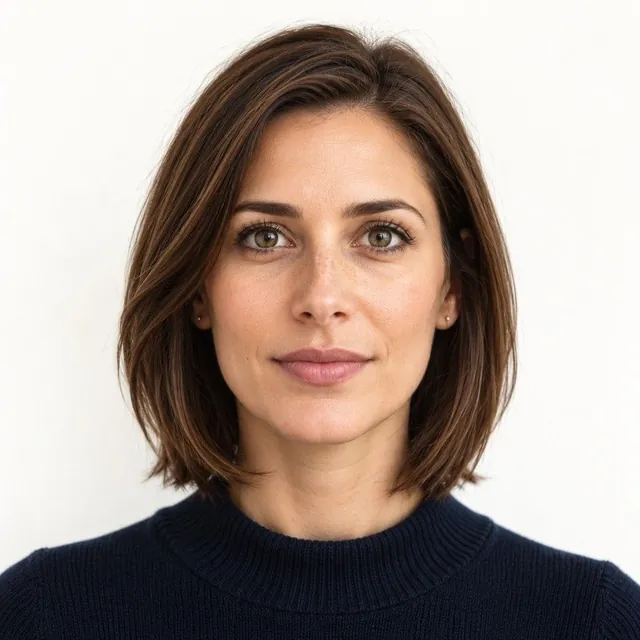
How to take a passport photo with an iPhone
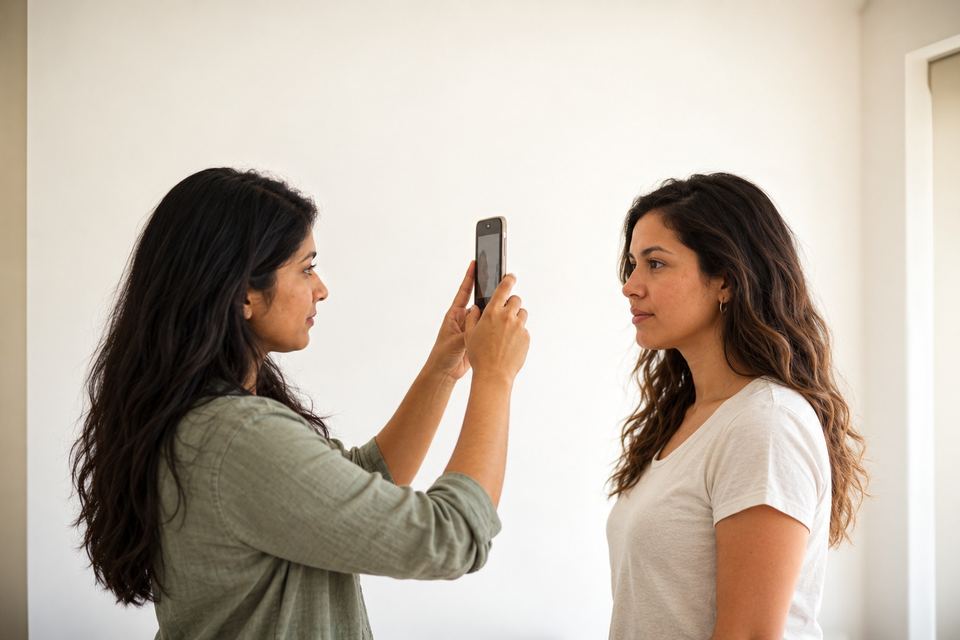
Turn off Portrait mode, filters and any beauty setting. Stand in front of a plain white or off-white wall, facing a window for soft light, and have someone hold the iPhone at eye level a few feet away (the back camera is sharper). Keep a neutral face with your eyes open and mouth closed, then crop it to 2 × 2 inches with the head 1 to 1 3/8 inches.
Camera settings
- Use the normal Photo mode, not Portrait mode (it blurs and changes the background)
- No filters, no beauty or smoothing effects
- Flash off; use daylight from a window instead
- Clean the lens
Set up the shot
-
Find a plain wall
White or off-white, with nothing behind you. A white sheet works too.
-
Face the light
Stand facing a window so the light is soft and even, with no shadows on your face or the wall.
-
Get some distance
Have someone hold the phone at eye level a few feet away. A selfie at arm’s length distorts the face.
-
Pose
Face the camera straight on, eyes open, mouth closed, glasses off.
Check and crop it
Open passportowl.com in Safari or Chrome on the iPhone. The owl coaches you while you shoot, then we crop the photo to the official size and check every rule. You see the result before you pay, and retakes are free. See the full at-home guide.
Which iPhone settings to check
- Photo format: online renewal accepts JPG, JPEG, PNG, HEIC and HEIF, so the default works. For JPEG files, go to Settings, Camera, Formats and tap Most Compatible
- Quality: the State Department says to use the camera’s highest quality setting
- Photographic Styles: Apple says these customize how the iPhone captures photos. A filter that changes skin tone is not acceptable, so keep the default look
- Portrait Lighting: effects such as Studio Light or Stage Light Mono belong to Portrait mode. Stay in Photo mode; passport photos need even light, in color
Already took it in Portrait mode?
Portrait mode creates a depth effect that blurs the background. Apple lets you switch it off later: open the photo, tap Edit, tap Portrait, then tap Done.
The State Department says to fix background or lighting problems by retaking the photo, not by editing it. A fresh shot in Photo mode is the safer choice.
Front or back camera: who holds the iPhone
A friend or family member may take your passport photo. You should stand several feet from the camera and from the wall. A photo taken too close or too far away is rejected.
The rules don’t mention selfies. An arm’s-length selfie is usually too close, so the back camera held by someone else is easier.
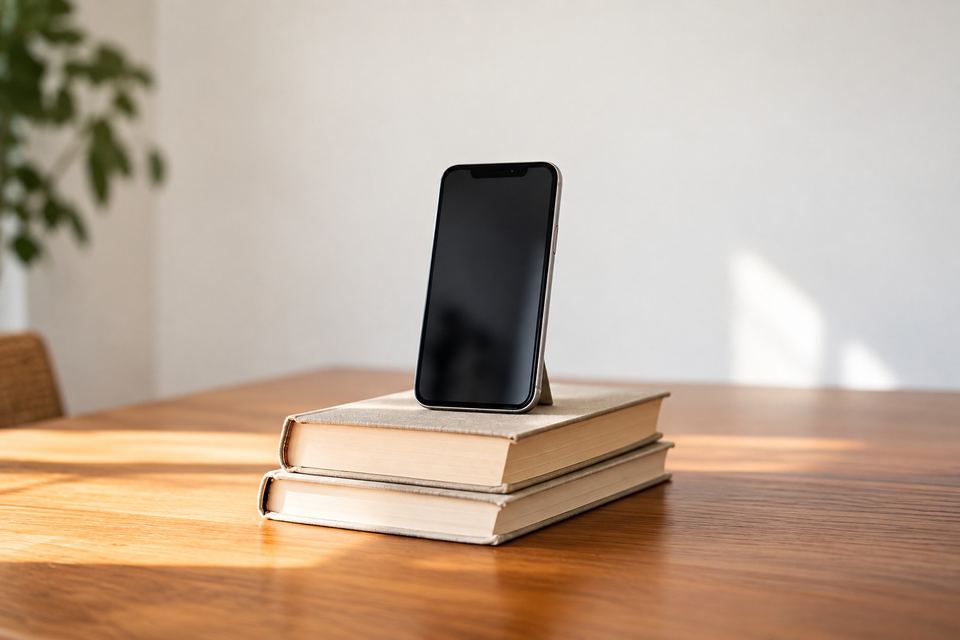
Alone? Prop the iPhone at eye level and use the Camera app’s timer. Frame yourself from the top of your head to your shoulders.
Light without the flash
Red eye from a flash makes a photo unacceptable, and you can’t edit it out. Retake it in natural light instead.
Avoid overhead lights and lamps far to one side. Both can throw shadows on your face. The State Department suggests natural light in a well-lit area.
iPhone mistakes that get a photo rejected
- A blurred background from Portrait mode
- A filter or style that changes your skin tone
- An arm’s-length selfie that is too close
- Red eye from the flash
- Shadows from overhead lights
- A blurry, grainy or pixelated file, often from texting it
- A photo from your camera roll taken more than 6 months ago
Getting the photo off your iPhone
- Don’t text the photo to yourself. The State Department says texting lowers its quality
- Save it on the device you will renew with. The file must be 54 KB to 10 MB
- Importing to a computer by USB may turn HEIC into JPEG. To keep the original, go to Settings, Apps, Photos and tap Keep Originals
- AirDrop, Messages and email may also convert the file if the other device can’t open HEIC
If you take the photo on passportowl.com, the owl guides your distance and light, takes the shot when all checks pass, and only crops and sizes it. You still save the finished file on the device you renew with. Checking is free; the digital photo is $11.99 with a 4×6 print sheet. Try the free photo checker.
Already have a photo? Check it free with the passport photo checker. Every rule in one place: passport photo requirements.
Questions
Should I use the front or back camera?
The back camera is sharper. Ask someone to hold the phone, or prop it up.
Can I use Portrait mode?
No. Portrait mode blurs and changes the background, which counts as an edited photo.
Can I use an iPhone photo to renew my passport online?
Yes. The online renewal accepts HEIC and HEIF files, the iPhone’s usual formats, from 54 KB to 10 MB. The photo must be unedited and in color.
Should I use the iPhone flash for a passport photo?
Better not. Red eye from a flash is not acceptable and must not be edited out. Use window light.
Can I edit my iPhone passport photo?
Don’t use filters, retouching or apps that change it; the State Department checks for changes. Cropping is fine, and the online renewal tool lets you crop.
Can I use an old photo from my iPhone camera roll?
Only if it was taken in the last 6 months and meets every rule. A photo made digitally from an earlier photo is not accepted, even if it looks right.
Sources: Passport photos - travel.state.gov , Uploading a digital photo (online renewal) - travel.state.gov , Use Portrait mode on your iPhone - Apple Support , Using HEIF or HEVC media on Apple devices - Apple Support , Use Photographic Styles with your iPhone camera - Apple Support , Use iPhone camera tools to set up your shot - Apple Support . Checked Oct 19, 2026. How we keep rules accurate